Synthetic monitoring: replay a real user journey
An uptime monitor tells you your homepage returns 200, and ZipLogger has those too. It does not tell you that the sign-in button stopped working after this morning's deploy. Synthetic browser monitoring does: a real browser walks through a customer's journey on a schedule and tells you which step broke.
The usual way is to write Playwright scripts and run them from CI or a cron box. This post shows the other way: record the journey once by using your app, and let ZipLogger replay it.
Recording a journey
In ZipLogger, open Automation and click + New automation. Enter the page your journey starts on, for example https://app.example.com/login, and click Start recording.
A Chromium browser opens on a ZipLogger runner and streams into your tab. There is no extension and nothing to download. Click the viewport once to give it the keyboard, then use the page the way a customer would. Clicks, typing, dropdown choices, checkboxes, the Enter, Tab and Escape keys, and URLs you type in the recorder's address bar each become a step in the list on the right. Remove a wrong one with ×.
Clicking around proves little, so add checks as you go. The Add a check bar above the viewport has four:
- Element is visible: click an element, and the run fails if it isn't there.
- Text matches: click an element, and the run fails if its text changes. Use it for "the basket total says £42".
- On this URL: checks the browser is on the current page.
- Page title: checks the page title.
When you're done, click Stop recording and name the automation.
Passwords are not recorded
When you type into a password field, the recorder stores a reference such as {{secrets.PASSWORD}}, not what you typed. The save form asks for the real value under Credentials. It is stored encrypted, never returned by the API, and scrubbed from error messages, page URLs and console output.
A field counts as secret if it is type="password", has autocomplete="current-password" or autocomplete="new-password", or carries a data-zl-secret attribute. Use the attribute to mark any other field as secret:
<input name="api_key" data-zl-secret>Help it find your elements
Each step is saved with several ways to find its element, best first: test id, accessible role and name, label, placeholder, alt text, title, text, and last a CSS path. On replay the first one that works wins, so a renamed class doesn't break the check. The recorder looks for test ids in data-testid, data-test-id, data-test, data-qa and data-cy:
<button data-testid="place-order">Place order</button>If a step only matched by its CSS path, the run marks it as a fragile selector and shows Suggested selector repairs built from the element as it looks now. They are only suggestions. Nothing is rewritten without you.
Settings
The save form starts with these defaults:
| Setting | Options | Default |
|---|---|---|
| Runs | Every minute, 5, 10, 15 or 30 minutes, every hour, every 6 hours, once a day (choices faster than your plan allows are shown but disabled) | Every 5 minutes, or your plan's fastest schedule if that is slower: every 10 minutes on Pro, hourly on Free |
| Retries before failing | 0 to 10 | 2 |
| Retry delay (seconds) | 0 to 600 | 30 |
| Failed runs before alerting | 1 to 10 | 1 |
| Stop the run after (seconds) | the range the server allows | 60 |
| Step timeout (seconds) | 1 to 300 | 15 |
There are also checkboxes for Record video of every run, Screenshot every step, Capture a Playwright trace and Explain failures with AI. The AI option uses the key saved in Settings. Without a key it does nothing.
Your plan limits how many automations you keep, how often they run, how many retries they get, how many runs start a month, and how many browser minutes they use a month. Runs and minutes are separate limits: every attempt, retries included, uses at least one minute, and scheduled runs stop at whichever limit is reached first, until the usage month renews. The Automation page shows both, and the numbers are on the pricing page.
After recording you can edit steps by hand. That is where you add what the recorder doesn't create: waits, "check an element is gone", a screenshot at a checkpoint, or Call an API endpoint. An API step runs inside the browser's session, with the cookies the journey already earned, so it goes out as the signed-in user. You set the method, headers, body and accepted statuses (201, 2xx or 200-204). Headers can use secrets, like Authorization: Bearer {{secrets.API_TOKEN}}. Redirects are not followed, so a redirect to the login page can't pass as a 200.
What a failed run shows
A run only counts as failed after every retry has failed. The evidence comes from the last attempt. The run page shows:
- the status, the error, how many attempts were made, and the URL the browser ended on
- The page when it failed: a screenshot at the moment it broke
- Steps: every step with its time, the failing one highlighted with its error
- Console: what the page logged
- Failed requests: method, URL, and status or network error
- Page load: DNS, connect, time to first byte, first contentful paint and load timings
- Likely cause: a plain-English explanation, if AI is on and a key is configured
- Commits since this journey last passed, if a repository is connected
The last two are worked out once, on the run that opens an incident.
Each step has a run to here button. It replays the journey up to that step and stops, which helps when you're fixing step 9 of 12.
If the journey is still going when Stop the run after is reached, the browser is shut down and the run fails with a message naming the step it was on. The screenshot, console and failed requests are still collected, because a hung page is when you need them most.
Your server's side of the story
Every request the browser makes carries a W3C traceparent header, and the run's id is the trace id. If your application sends OpenTelemetry traces to ZipLogger, its spans for that run are already filed under the same id. The run page then shows What your application did, with the failing endpoint and its error. When a failure opens an incident and the span has a stack trace, ZipLogger can also open a regression case with ranked suspect commits. The post on finding the commit that broke production explains that part.
Requests also carry an X-ZipLogger-Synthetic header, so you can filter synthetic traffic out of your own analytics.
Alerts
When consecutive failed runs reach Failed runs before alerting, ZipLogger opens a critical incident on the Alerts page and sends it to the automation's channels: Email, Slack, Teams or Webhook. Each channel has a recovery checkbox for the "back to normal" message.
Only changes of state notify. An automation that has been failing for an hour doesn't message you every five minutes. With no channels, the incident is recorded but nobody is told.
The Step health panel shows each step's pass rate over recent runs. When a step that usually passes fails, the notification says it may be flaky rather than broken, with its recent failure count.
Where it runs from
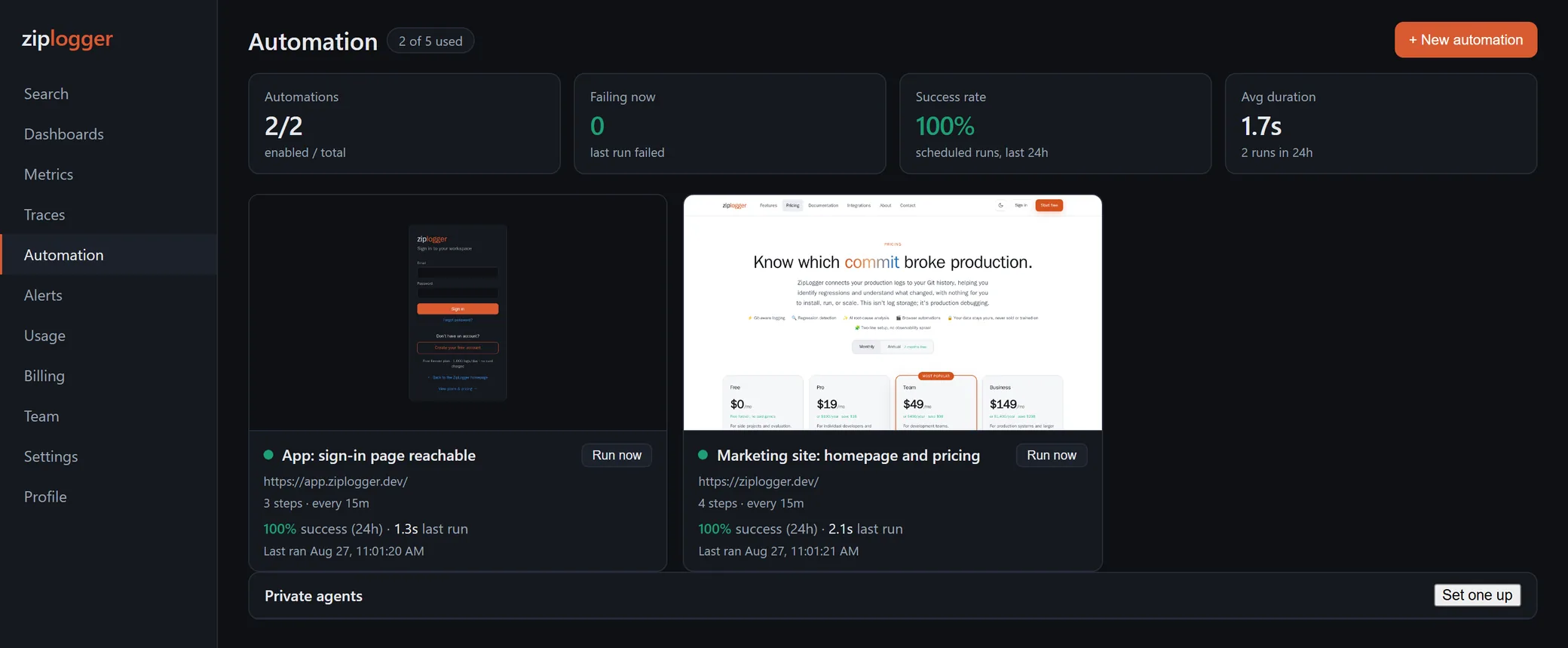
By default the browser runs on ZipLogger's runners, so your site must be reachable from the public internet. Internal hostnames and private IP addresses are refused. If there is more than one region, Run from pins an automation to one.
For an intranet app, a staging site behind a VPN or an internal admin tool, run a private agent. Enrol it under Private agents on the Automation page. You get a token starting with zla_, shown once. Then run one container inside your network:
docker run -d --restart unless-stopped --name ziplogger-agent \
  -e Agent__ServerUrl=https://app.ziplogger.ai \
  -e Agent__Token=YOUR_AGENT_TOKEN \
  -e Agent__MaxConcurrentRuns=2 \
  ghcr.io/ziploggerhq/ziplogger-synthetics-agent:latest
The agent only makes outbound HTTPS calls, so you open no ports. You can record through it by picking its region before Start recording. It only runs automations pinned to its region, never ones set to "Anywhere".
What it can't do
Know these before you record anything:
- No 2FA codes. Secrets are fixed values. Nothing generates a fresh one-time code per run, so a login that asks for one can't be replayed. Use a test account without 2FA.
- No CAPTCHA handling. If your login shows a CAPTCHA to automated browsers, the run stops there. Turn it off for the test account or environment.
- No file uploads. The recorder skips file inputs and there is no upload step.
- No hover, scroll or drag steps. Mouse movement reaches the page while you record, but it isn't saved, and the step editor can't add these either. A menu that only opens on hover may not open on replay.
- No custom code. Steps are a fixed set of actions. For loops, branches or computed values you need a test framework.
- Real side effects. The browser really clicks Place order. Point checkout journeys at a test mode or a test account.
If that fits your app, record your most important journey first: usually sign-in, then whatever makes you money. The automation docs cover every option, or create a free workspace and record one now.